Portal guide
Learn how to review the work done for your company, approve a service sheet and download invoices. The menu shows the sections your account can access.
Activate your account and sign in
- Once both parties have signed the agreement, the company contact will receive an invitation by email. Open it and choose a password with at least 12 characters. The link can be used once and expires after 72 hours.
- Then sign in with the email address that received the invitation and your new password. If you still use a temporary password, the portal will ask you to replace it when you sign in.
- If your link has expired or you cannot sign in, contact Programador Web. If your company manager created your account, they can also reset your access.
Review the monthly overview
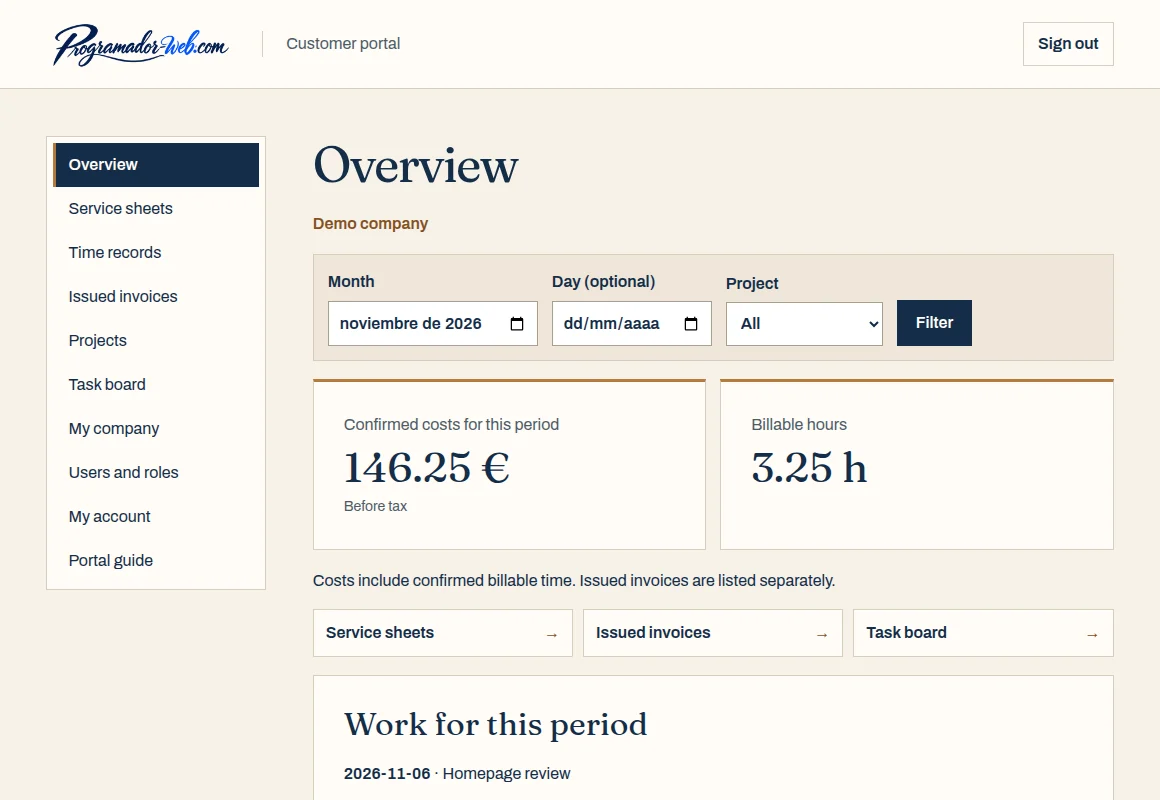
- Open “Overview”. Select a month and, to see work for a particular project, choose that project. Click “Filter”.
- The cards show billable hours and the cost of confirmed work before tax. Below them you’ll find the tasks for the period and a twelve-month cost history.
- If your role has access, open “Service sheets” for more detail. You can also open a sheet from the cost history by selecting the relevant month.
Review hours and save a service sheet
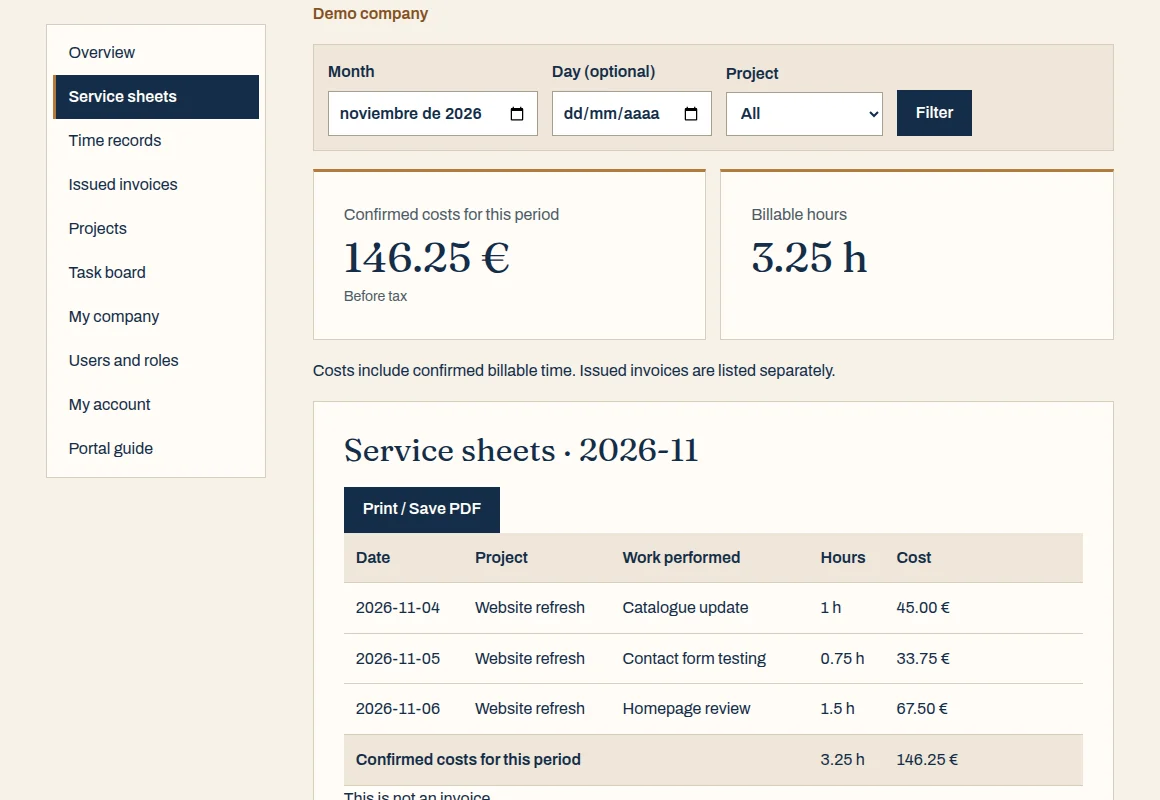
- In “Service sheets”, select a month or a specific day. Choose a project if you want to narrow your results, then click “Filter”.
- The table shows the date, project, work performed, hours and cost. Click “Print / Save PDF” and choose “Save as PDF” in your browser’s print dialogue.
- “Time records” shows confirmed sessions, including non-billable time. The displayed cost is calculated from confirmed billable hours.
Review a sheet sent by email
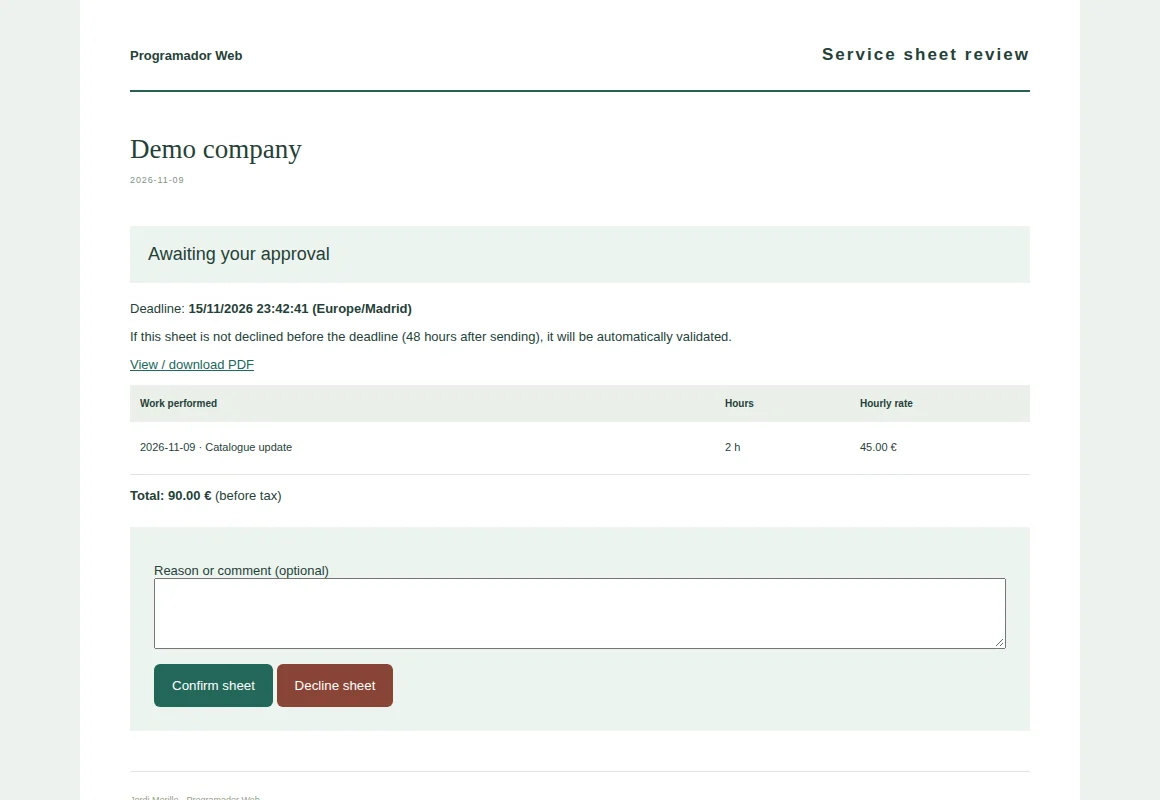
- Open the private link in the review email. It shows the status, deadline, tasks, hours and rate. Select “View / download PDF” to keep a copy.
- If everything is correct, click “Confirm sheet”. If something needs correcting, explain what to review in “Reason or comment” and click “Decline sheet”. The page shows the outcome of your response.
- You have 48 hours from the time the email was sent. If you haven’t declined the sheet by then, it is automatically approved. The exact date and time appear next to the status.
Download an issued invoice
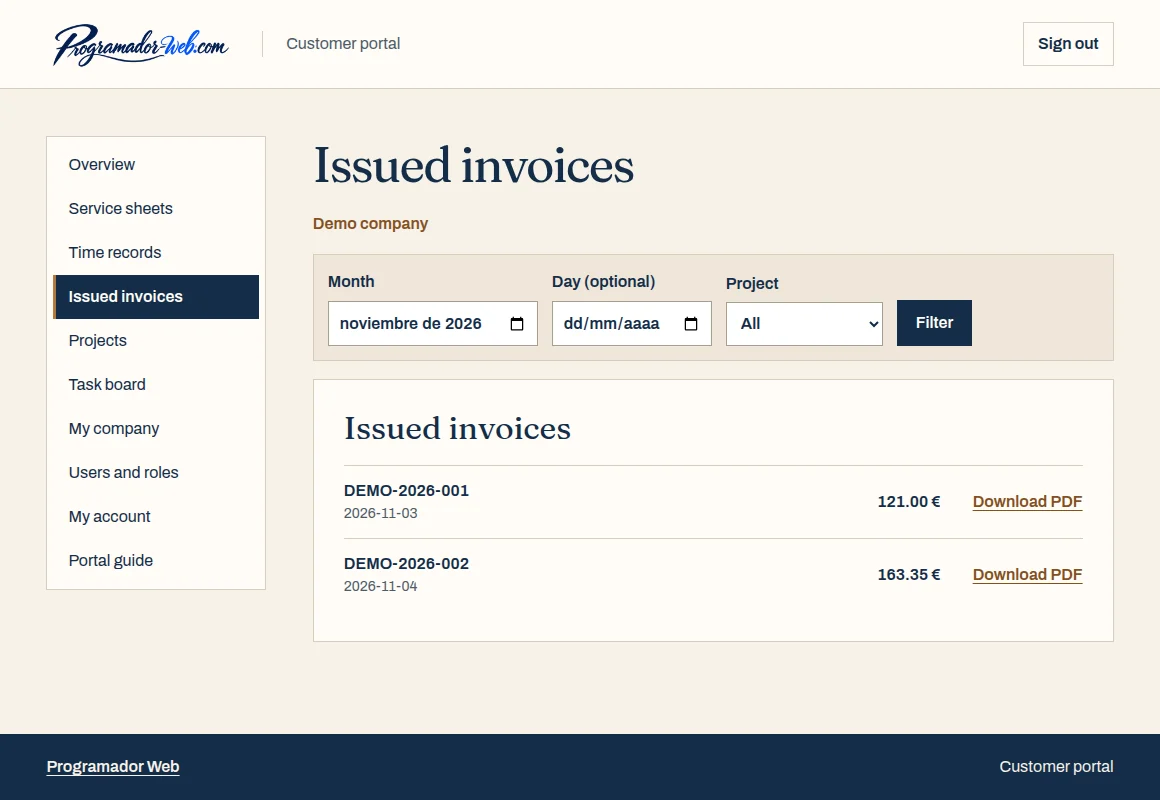
- Open “Issued invoices”. Choose the month of issue or a specific date and click “Filter”.
- Find the invoice by number, date or amount. Select “Download PDF” on that row. To review the work for that period, go back to “Service sheets”.
Follow projects and tasks
- Open “Projects” to see the status and description of each project for your company.
- Open “Task board” to see tasks grouped by status. On a phone, swipe sideways on the board to see the other columns.
Update your account and company details
- Use “My account” to change your language. To change your password, enter your current password, the new one and its confirmation, then click “Save”.
- If you have access to “My company”, you can update contact and tax details and set the company language. Save your changes when you’re done.
Manage users and access
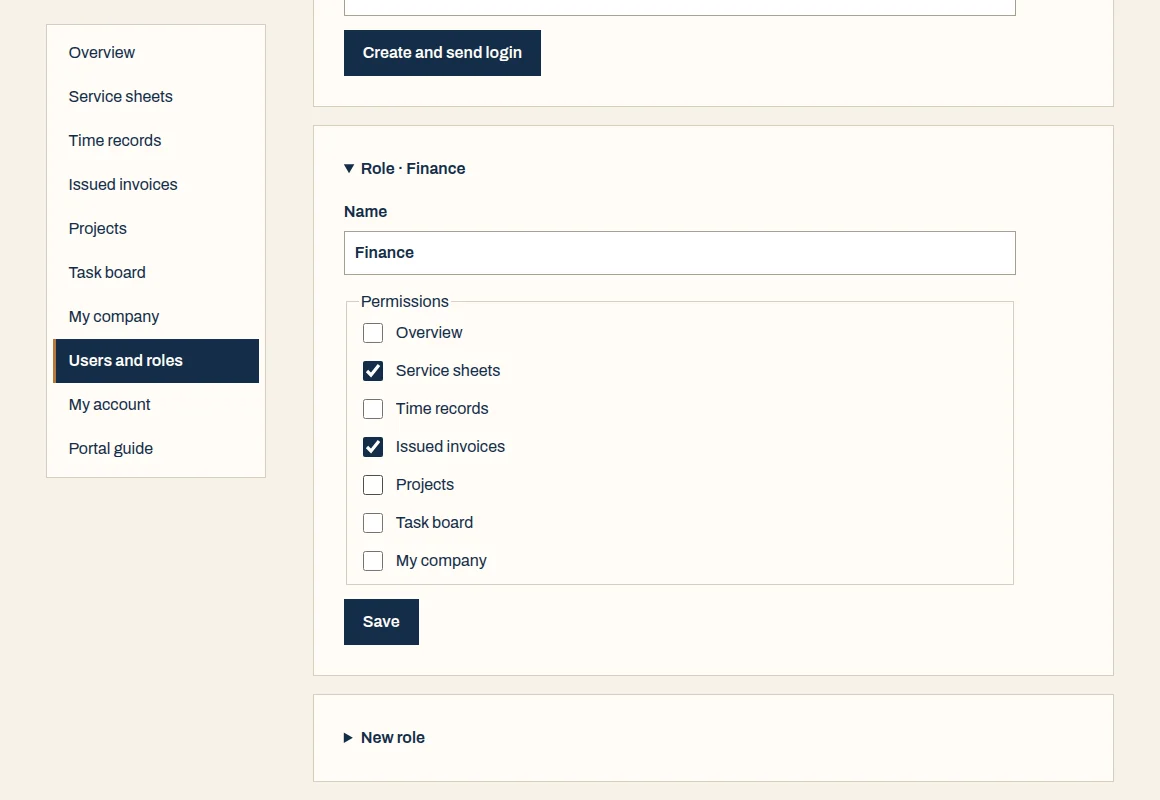
- If you are your company’s portal manager, open “Users and roles”. Under “New role”, name the role and tick the sections the team needs.
- Open “New user”, enter their name, email and language, select a role and click “Create and send login”. Open an existing user to change their permissions or disable access.
- Managers can access all sections and administer the team. Your company must always have at least one active manager.